
Your whole light show, in your pocket.
Free with every Chameleon controller — free firmware included. The same lights and the same setup on your phone, your tablet and any web browser.
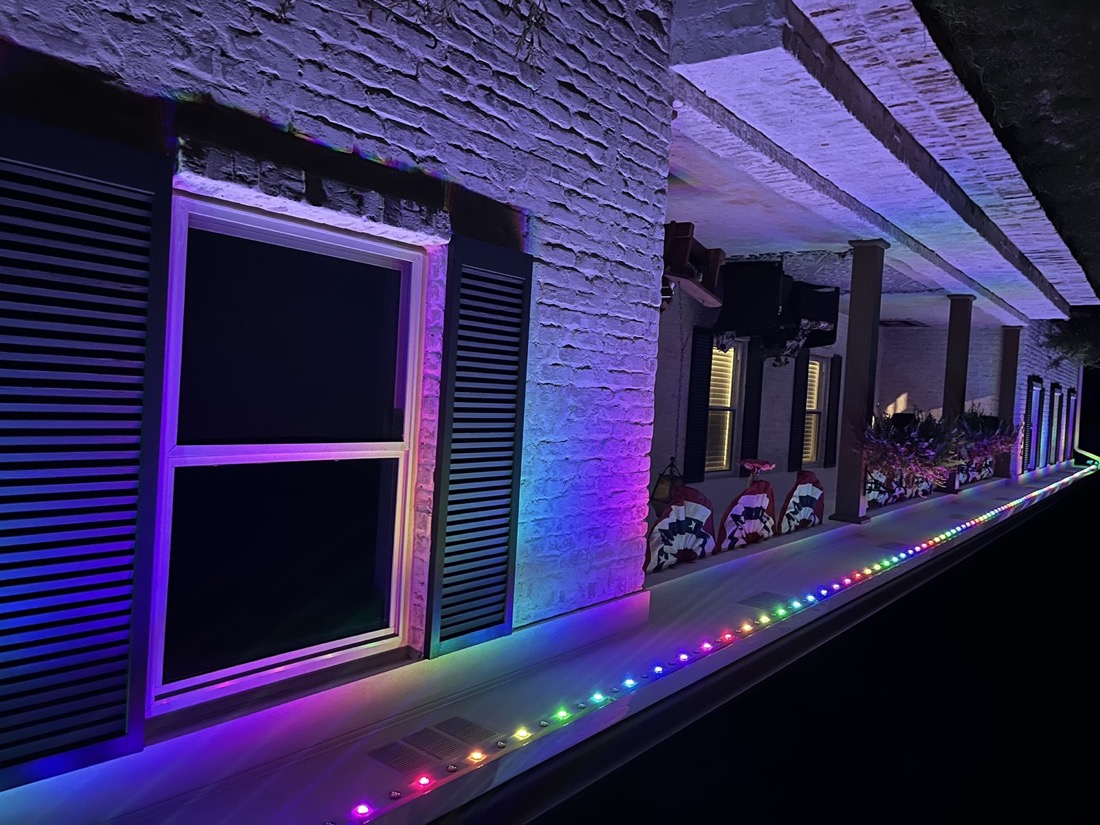
Made for the house, not just the phone
Every photo here is a real Chameleon install. Swipe through, or play a 20-second clip with sound.
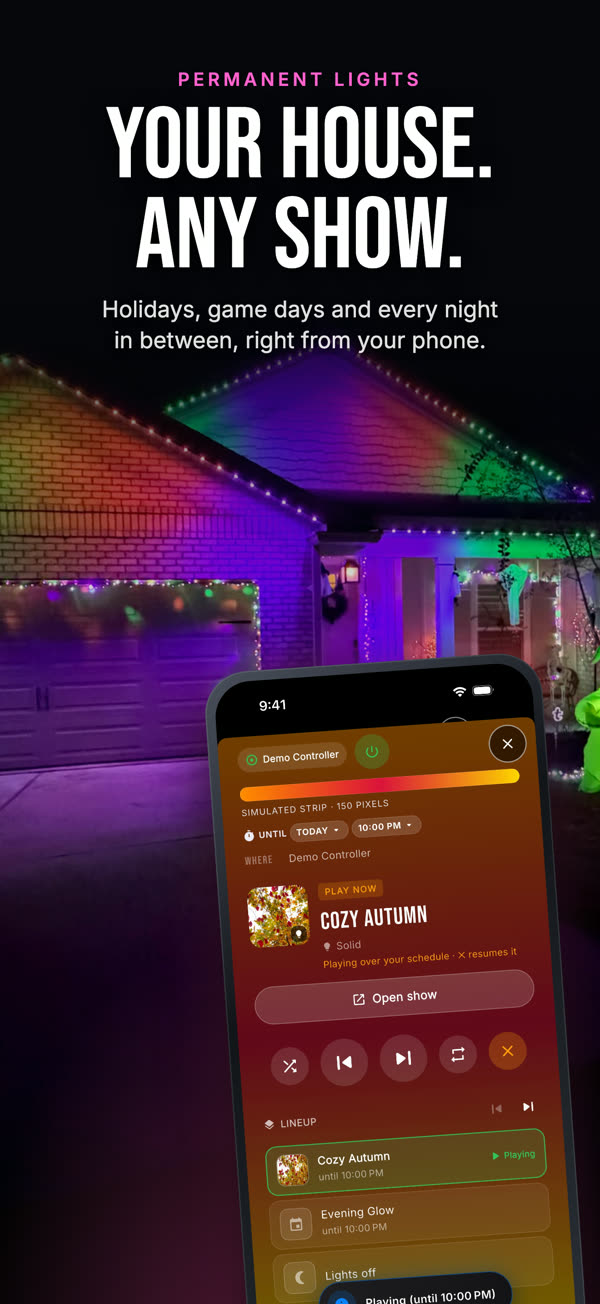
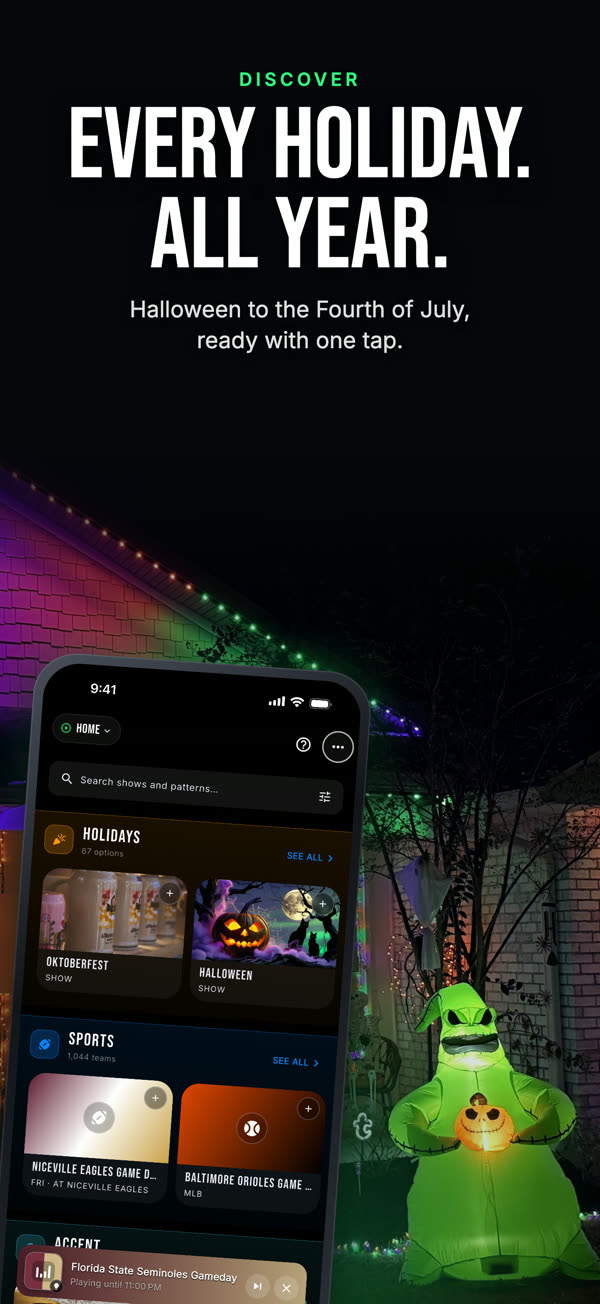
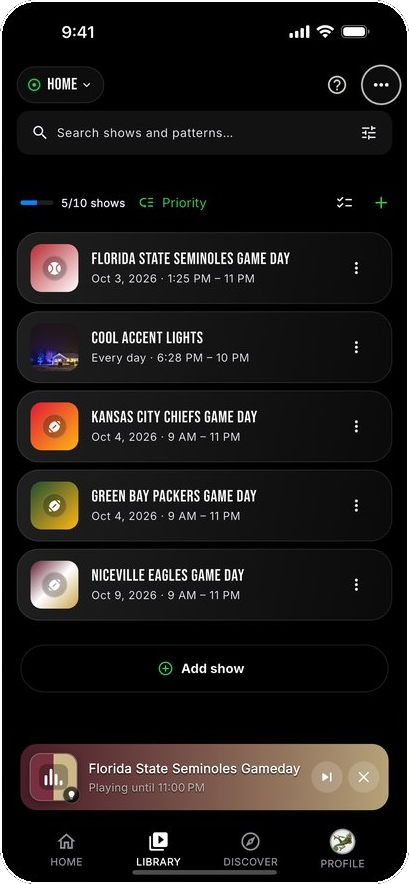
See the app before you download it
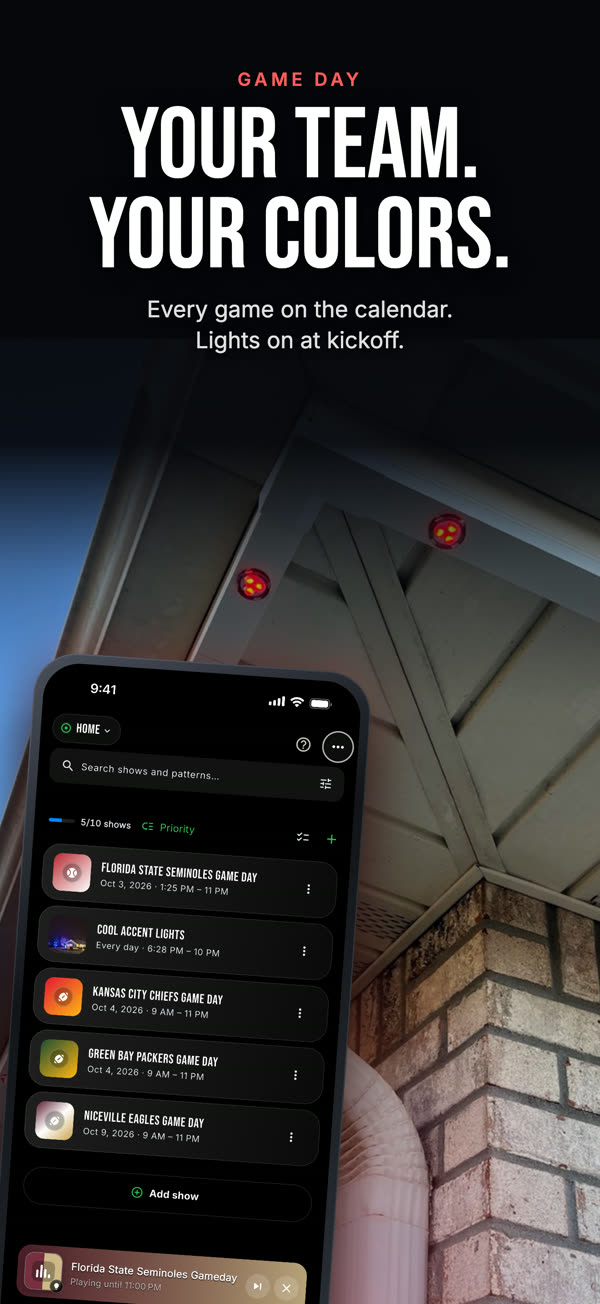
Home shows what’s on now and what’s next. The Library holds every show you have, Discover has thousands more, and the Calendar shows exactly when each one plays.
- Home: now playing, up next, Quick-select, Evening and Morning Lights
- Library and Discover: your shows, plus holidays, game days and everyday scenes
- Tools: Calendar, Color Studio, Music and Ask Chameleon, one tap away
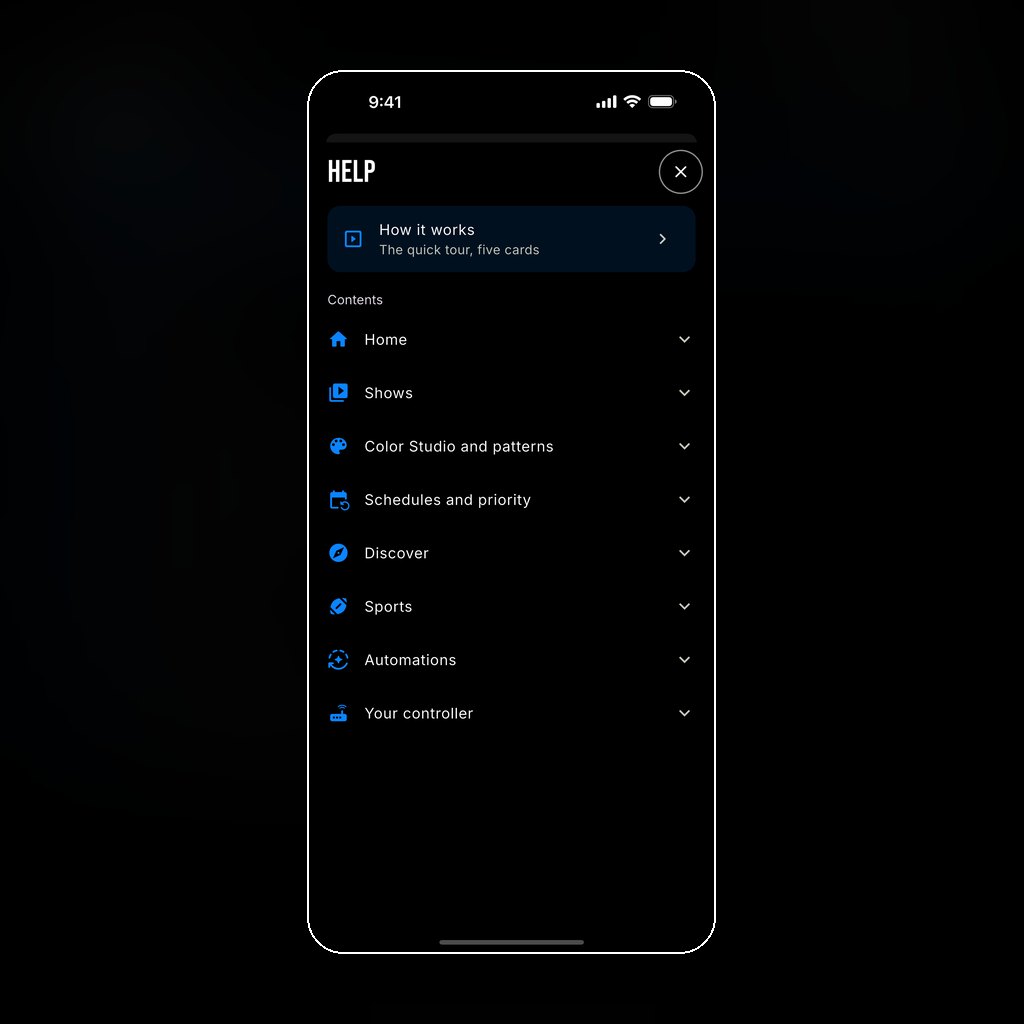
- Help: answers for every feature, and “Show me” walks you through it
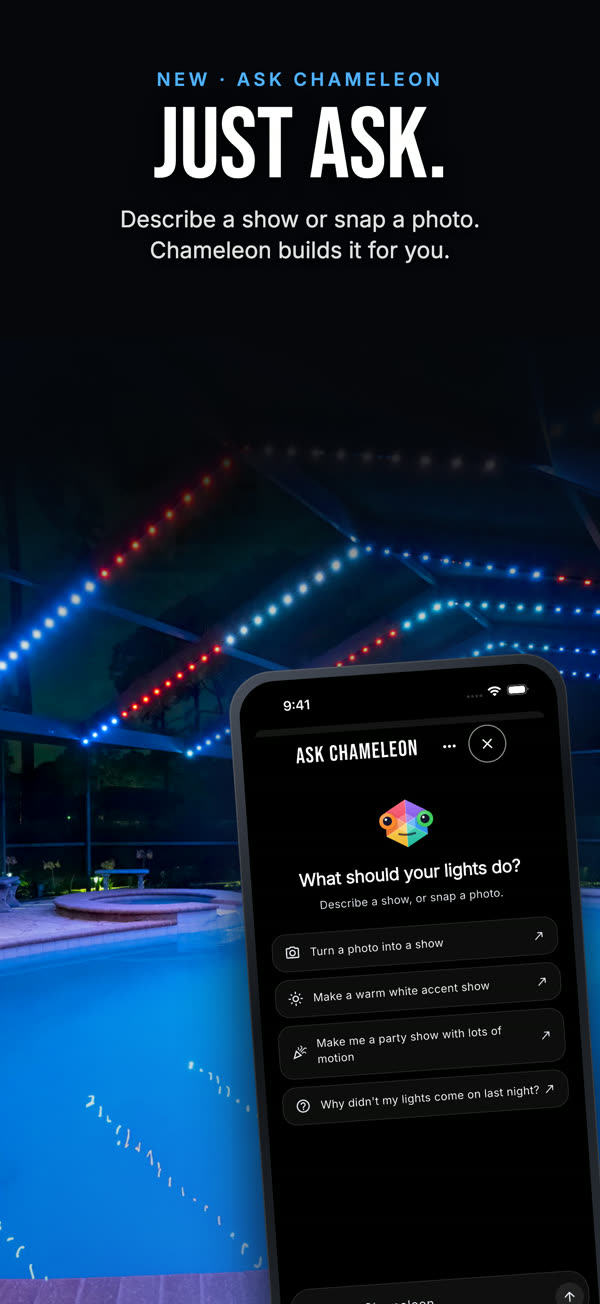
Ask Chameleon
Say what you want and the built-in AI assistant builds it: “a cozy autumn show with warm oranges and deep reds” becomes a finished show — patterns, colors, motion and a cover picture — ready to play or put on the calendar.
- Describe it: a party show with lots of motion, a warm white accent, your team’s colors
- Snap it: turn a photo of a sunset, a wreath or a jersey into a show in its colors
- Schedule it: “every evening through Thanksgiving” goes straight on the calendar
- Ask it: “why didn’t my lights come on last night?” gets a real answer from your own setup
You confirm every change. Chats are deleted after 24 hours and photos right after they’re read — see the privacy policy.
Snap the schedule
Take a photo or a screenshot of a game schedule, a recital list or a market calendar and say what you want. Ask Chameleon reads every date and time, checks them with you, and puts your show on each one.
What it makes lands in your Library like anything you made yourself — tweak a color, swap a pattern, share it. Nothing is locked.
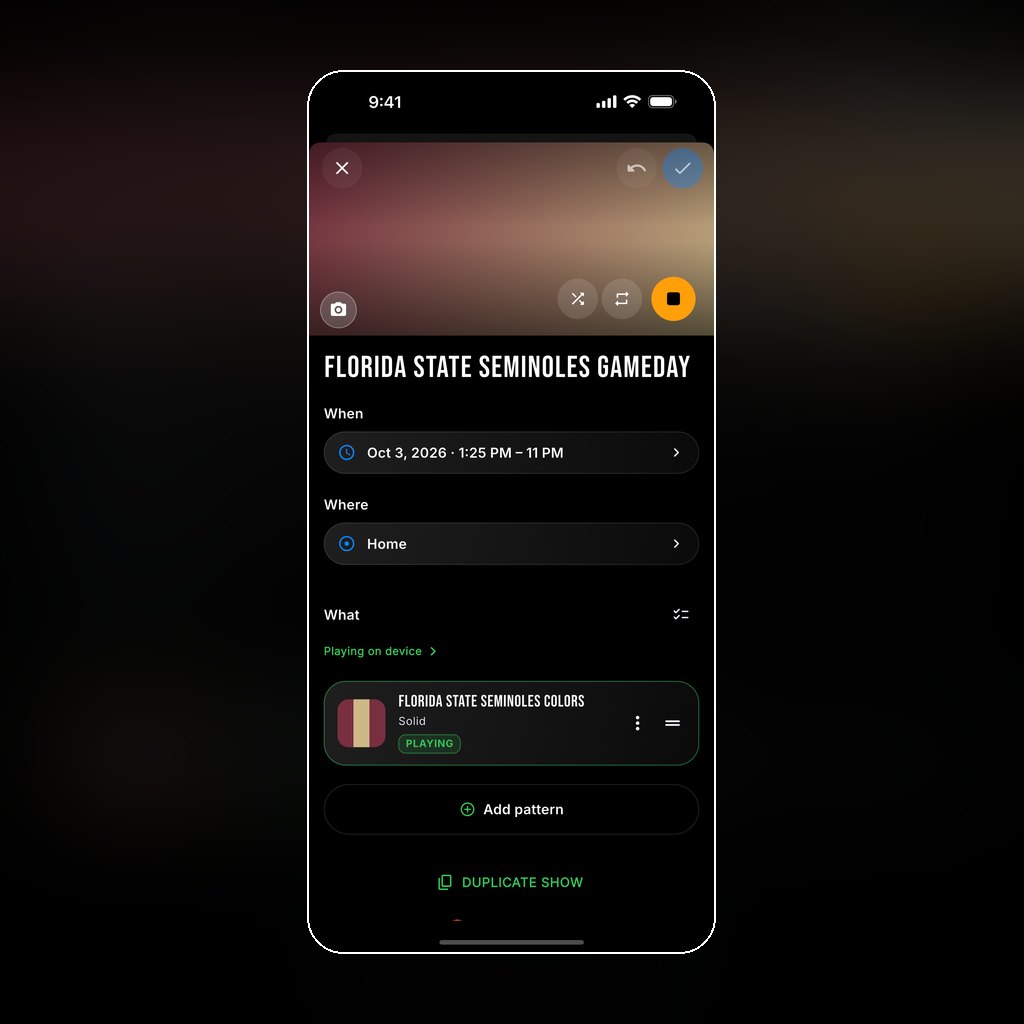
Everything is a show
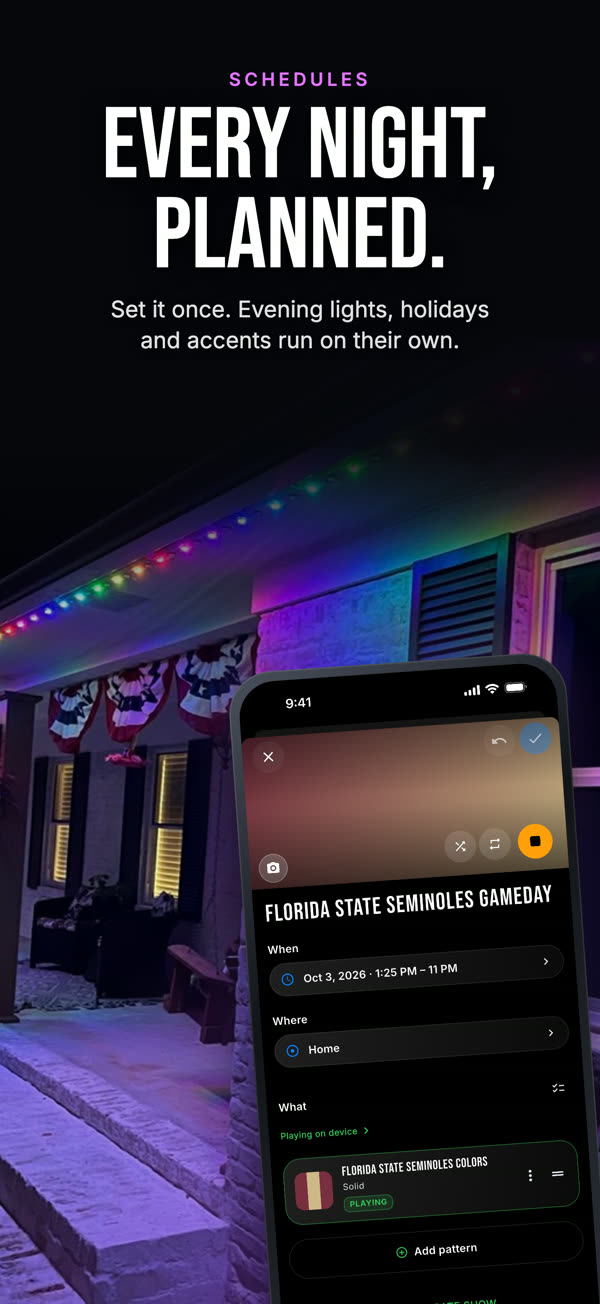
Every show has a When, a Where and a What, all on one page. The What is one or more patterns that play in turn; the When is a date, a holiday that moves each year, a game day or every night at sunset; the Where is the whole house or one zone.
- On now and Up next on Home show what will really play, and until when
- Priority decides which show wins when two overlap
- Shows on specific dates: markets, open houses, birthdays
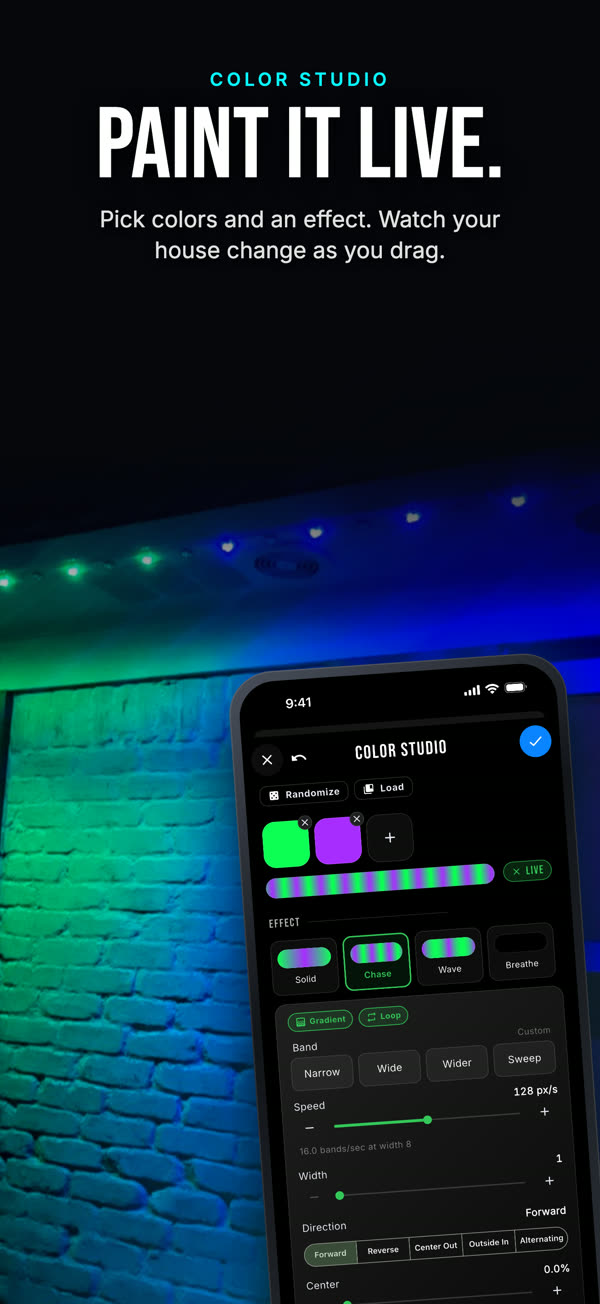
Color Studio
Pick colors, pick an effect, and watch it live on the house as you drag. Tune speed, band width and direction, then save it as a show.
See what it can do
Short clips from the app. Tap one to play. New here? Start with the step-by-step setup videos.
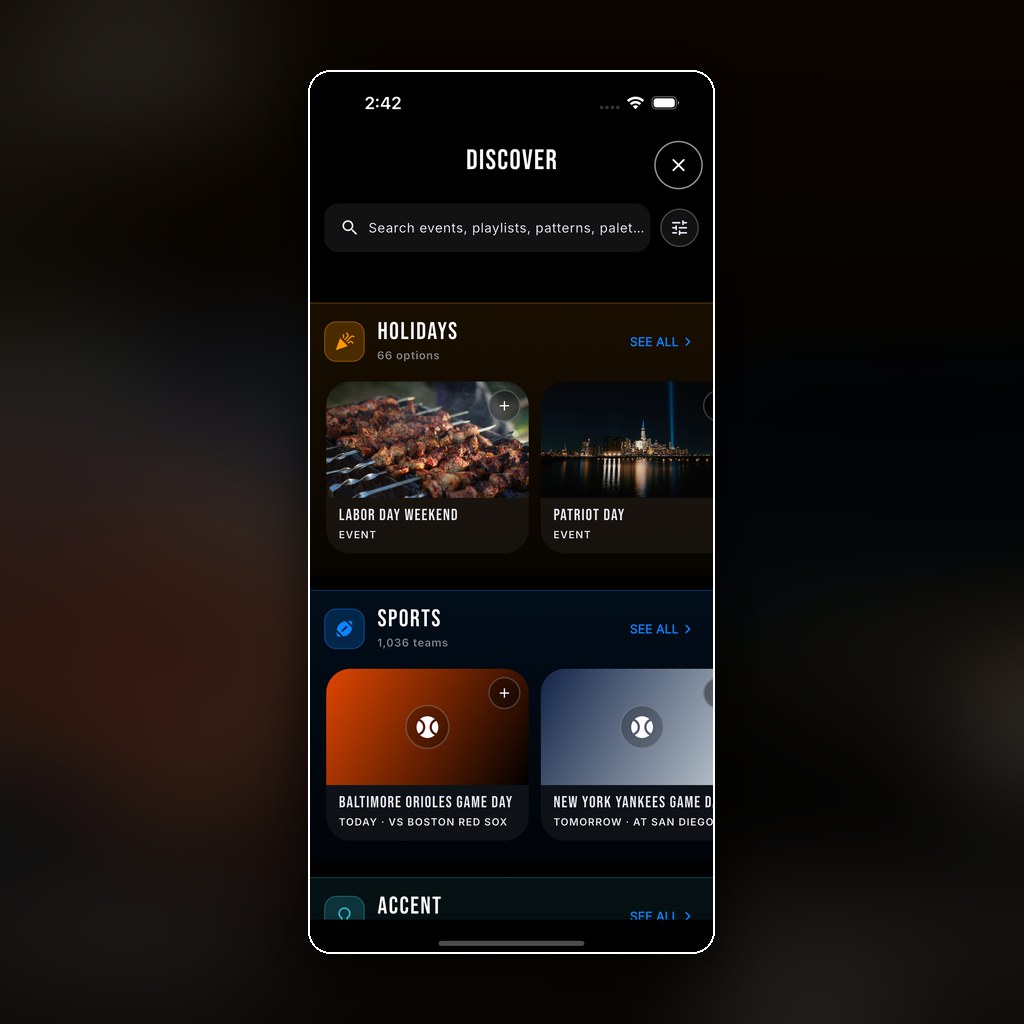
Thousands of scenes, ready to go
Every major holiday, over a thousand college, pro and local teams, and a shelf of everyday accent looks — Security Lights, Rainfall and Snow Day included. Add one with a tap, then make it yours; nothing is locked.
Browse before you download
The same holidays, team colors and patterns the app shows, straight from the app’s catalog. Tap anything for a closer look and a preview on a roofline.
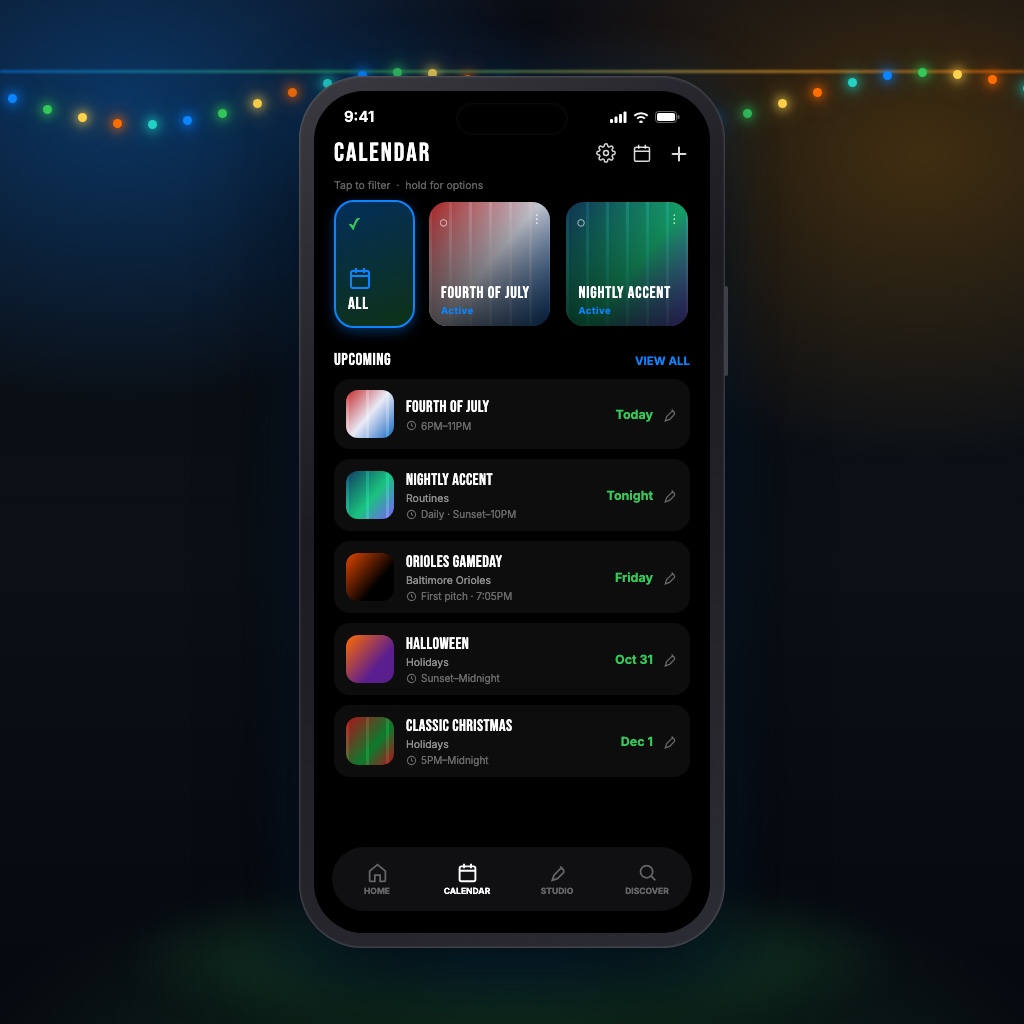
Set it and forget it
Pick a holiday and it runs on the right days every year. Follow your team and the lights come on at kickoff, all season and into the playoffs — a rescheduled game moves with it. Nightly accent lighting follows the sunset, not a fixed hour.
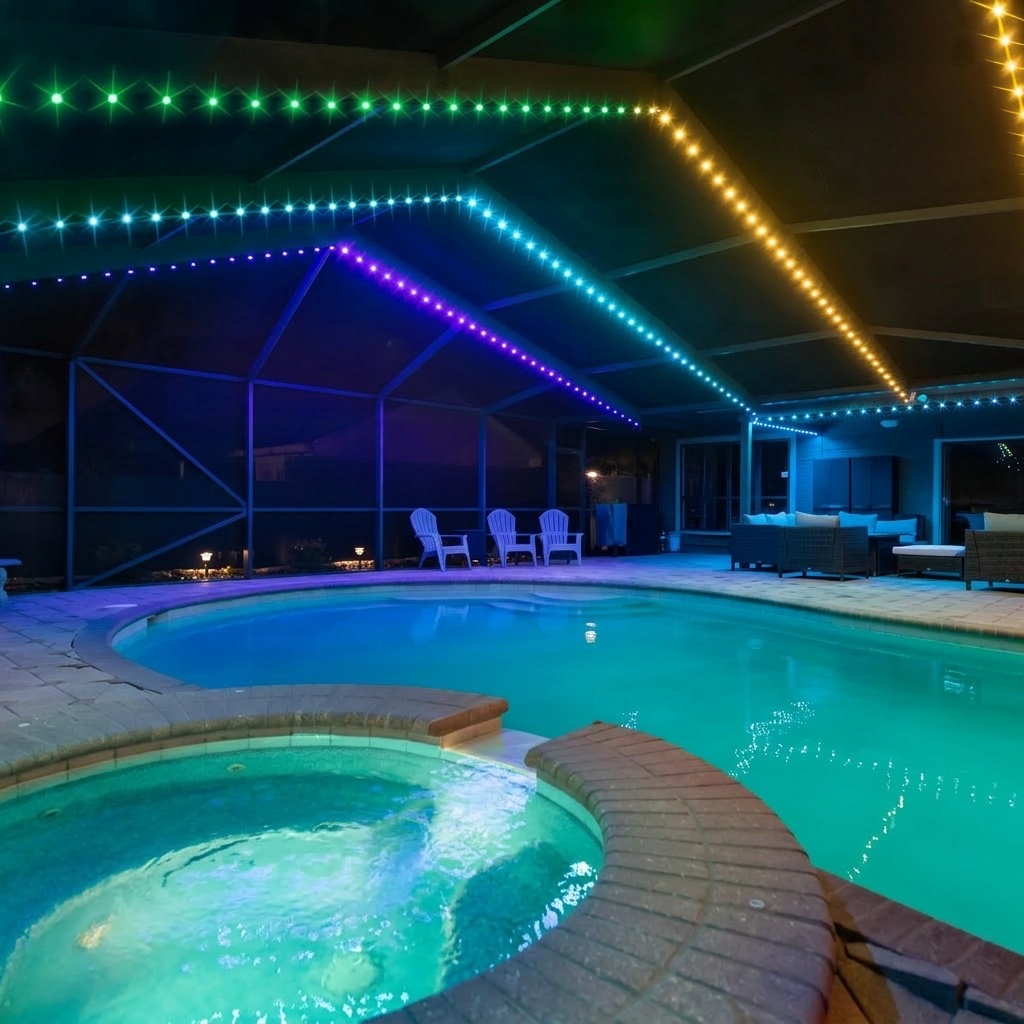
From the driveway — or the airport
Over your own Wi‑Fi, always free. With a plan, from anywhere in the world, with every change synced so the whole household sees what’s actually on the house.
Built for the way people use permanent lighting
Rain and Snow Lights
With a plan, the house lights itself up when it rains or snows, each with its own hours and show, and hands control back when it clears.
Quick-select
Your go-to shows, Color and Music right on Home — one tap each.
Zones
Roofline, porch columns, pool cage — a different show on each.
Music
The lights react to what your phone hears, on your own Wi‑Fi.
Share the house
With a plan, everyone controls the same lights from their own phone.
Ask Chameleon
With a plan, describe a show or snap a photo and the AI assistant builds it, schedules it, or tells you why the lights did what they did.
Help built in
Tap ? for answers, and “Show me” walks you through the real screens.
● Free ● With a plan
App questions
The same answers as the Help screen in the app (tap ? at the top). In the app, most have a “Show me” button that walks you through the real screens.
Getting started
How do I set up a new controller?
Profile → Devices → +, then follow the steps while standing near it.
I am an installer. Where do I start?
Profile → Devices → Installer setup sets pins, pixel counts and zones.
Do I need an account?
No. Your lights work on your Wi‑Fi without one; an account with a plan adds sharing and control from anywhere.
What does a plan add?
Rain and Snow Lights, teams with game times all season, holidays that move each year, and control from anywhere. Yearly is $24.99 a year in the app, with 10 days free (no card) from the day you add your first controller; Lifetime is $149.99 once. More about the plans.
Shows and schedules
What’s the difference between a show and a pattern?
A pattern is colors plus an effect; a show is one or more patterns with a When and a Where.
Where are palettes, playlists and events?
They are all shows now: a show is a When, a Where and a What. The What is one or more patterns that play in turn (like a playlist), and each pattern holds its colors (the old palette) and an effect.
How do I add a show?
Tools (…) → Add show: pick one from Discover or create your own.
How do I change a show’s schedule?
Open the show in the Library and tap When.
How do I see when my lights will come on?
Tools (…) → Calendar, then tap a day to see it hour by hour.
How do I change the default on and off times?
Profile → Defaults. Shows set to household times follow them.
Two shows overlap. Which one plays?
The one higher in Priority, in the Library.
How do sunrise and sunset times work?
In a show’s When, set Lights On or Off to Sunset or Sunrise (plus or minus minutes). The time follows the real sun at your controller’s location, so set that in Device Settings → Time & Location.
What do “turn on early” and “keep going after” do?
They stretch a holiday, date range or game day by whole days. The sliders show the exact first and last day the lights will run.
How do I add a show to Quick-select?
On Home, tap + at the end of Quick-select and pick a show.
Colors, patterns and music
How do I change colors and effects?
Tools (…) → Color Studio: tap a color to change it, + to add one, then pick an effect.
How do I play a pattern?
Make it a show: build it in Color Studio and tap ✓ to save it as a show, then play it from the Library or Quick-select.
How do I light parts of my house differently?
Split the lights into zones in Device Settings → Lights & Output → Zones, then pick the zone as a show’s Where.
How does Music work?
Music lights react to what your phone hears: open Music and tap LISTEN. Your phone and controller must be on the same Wi‑Fi.
Sports and weather
How do I follow my team?
Search Discover for your team and tap +; its games go on your calendar.
How do I make my own team schedule?
Add show → Create my own → When → Game days → Pick a team → Add a team, then Manage dates to enter its games.
How do Rain and Snow Lights work?
Turn them on in Automations on Home. They play your chosen show while it rains or snows at your controller’s location.
Why does Rain Lights say WAITING?
Something you played is holding the lights. Tap ✕ on the player bar and the weather show takes over.
Sharing and backup
How do I share control with my family?
Profile → Household → Invite someone.
How do I back up my shows?
Profile → Backup & restore saves a copy to a file.
Don’t have lights yet?
Get a quote for an install, pick up a DIY kit, or flash the free firmware onto hardware you already own.